


Slide Background
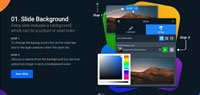
01. Slide Background
Every slide includes a background, which can be a picture or solid color.
Step 1

To change the background click on the label bar and in the layer window select the style tab.

Step 2

Choose a source from the background top tab then upload an image or pick a background color.

Build & Design
02. Build & Design
Build any layout with layers and customize your designs limitlessly.
Step 1

To add a layer, click the green plus button in the left sidebar and select the type of layer.

Step 2

Select any layer and you can edit its content and style properties in the layer window.

previous arrowprevious arrow
next arrownext arrow
Slide Background
Build & Design
previous arrow
next arrow
Shadow

Files that gives you control over the display of modules or components.

Override files are placed in special folders and can be used in place of the standard layout files. Unlike Template Overrides, which override layout files of the same name, Layout Overrides are additional layout files that give you more options and control.