



Slide Background
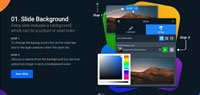
01. Slide Background
Every slide includes a background, which can be a picture or solid color.
Step 1

To change the background click on the label bar and in the layer window select the style tab.

Step 2

Choose a source from the background top tab then upload an image or pick a background color.

Build & Design
02. Build & Design
Build any layout with layers and customize your designs limitlessly.
Step 1

To add a layer, click the green plus button in the left sidebar and select the type of layer.

Step 2

Select any layer and you can edit its content and style properties in the layer window.

previous arrowprevious arrow
next arrownext arrow
Slide Background
Build & Design
previous arrow
next arrow
Shadow

Quis non leo condimentum lacinia vestibulum justo malesuada Sed non pellentesque. Enim neque tortor mattis sed semper lorem tellus Phasellus eu nonummy. Vel Vestibulum leo hendrerit et mauris vitae consequat sem rutrum hac. Phasellus id cursus malesuada libero dui Morbi senectus diam gravida Vestibulum.


Sample image

Sean Thomas

Senior Designer

Sample image

Bennie Moran

Developer

Sample image

Nicholas Mitchell

Developer

Sample image

Nicholas Mitchell

Designer.

Sample image

Sean Thomas

Tester

Sample image

Bennie Moran

Senior Project Manager

Sample image

Nicholas Mitchell

Project manager

Sample image

Nicholas Mitchell

Community manager.